Evidence and Signed Packs
Download any evidence item for the period your auditor asks about, or build a signed pack of every item a framework needs. Your auditor can verify the pack with OpenSSL.
- Where
- Audit › Evidence
- Who
- Auditors and above
Before You Begin
You need the auditor role or higher. The guardian records every download, with who made it, when, which item and for what period.
Evidence contains personal information, such as accounts, roles and the addresses people signed in from. Store it as carefully as the rest of your audit evidence.
Downloading an Evidence Item
Open Audit › Evidence. Set From and To, and choose the realm in the top bar. Every download on the page uses this period and realm.
Building a Signed Pack
A pack contains every item the chosen frameworks need. It is signed, so an auditor can confirm that nothing was changed or left out.
On Audit › Evidence, select Build evidence pack, then select one or more frameworks.
The pack is a zip file with these contents:
| File | What it contains |
|---|---|
evidence/… | The evidence files |
catalogue.json | The requirements, evidence and tests for the chosen frameworks |
manifest.json | The SHA-256 hash and size of every file, what each item covers and where it came from, and the keys that signed the pack |
manifest.json.es384.sig | An ECDSA P-384 signature over the manifest |
manifest.json.mldsa87.sig | An ML-DSA-87 signature over the same bytes |
keys/ | Each public key, named by its SHA-256 fingerprint |
SHA256SUMS, VERIFY.txt | The file hashes in sha256sum format, and instructions for checking the pack |
The Pack List
Evidence packs lists every pack that has been built, newest first. Each entry shows who built the pack, when, and for which frameworks and period. A pack shows Building while it downloads and Complete when it finishes. If the download stopped part way, it shows Aborted. Build again opens the dialog with the same frameworks, period and realms.
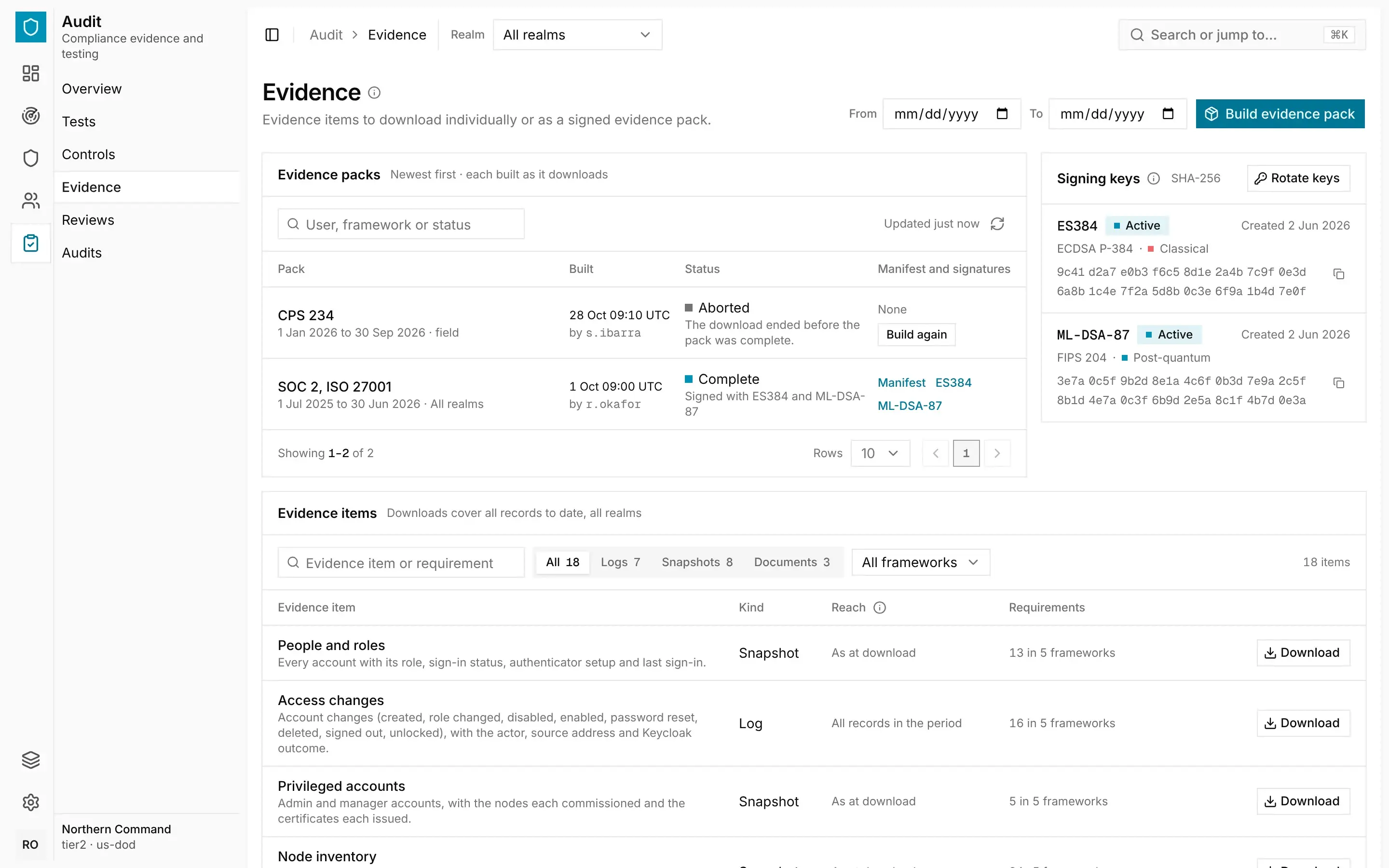
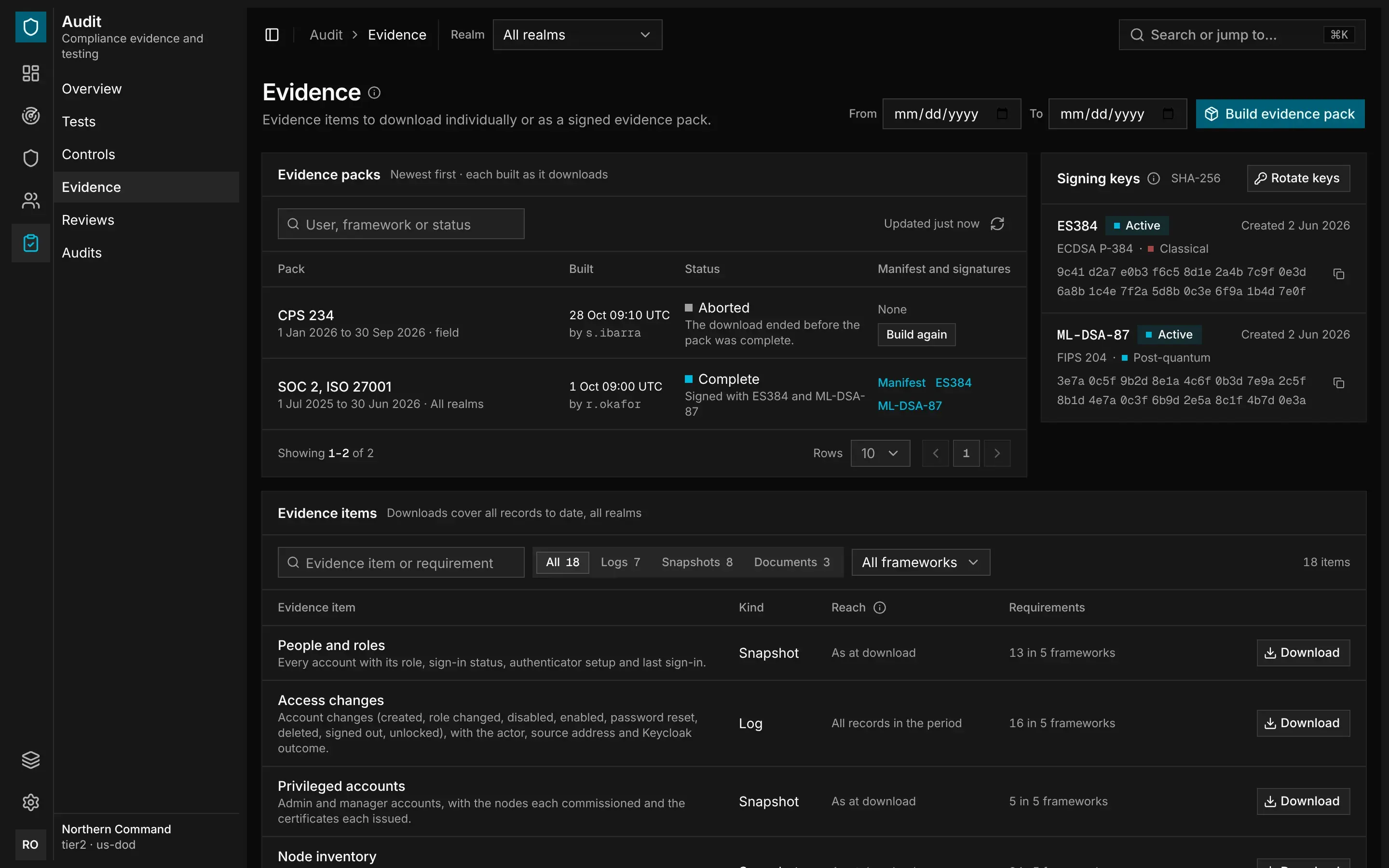
For a complete pack, Manifest downloads the manifest exactly as it was signed, together with its signatures. Use them to confirm that a pack your auditor holds matches the record.
Verifying a Pack
Compare each key in
keys/with the fingerprints listed under Signing keys on Audit › Evidence. Don't rely only on the keys inside the pack.
Rotating Signing Keys
The guardian creates its signing keys when it first starts, and seals the private keys. To replace them, an admin selects Rotate keys under Signing keys. New packs are then signed with the new keys, so send your auditors the new fingerprints.
Old keys stay in the list, marked Retired, so you can still verify older packs. Keep a copy of the keys with the packs they signed.
Records Over Any Period
You can read every record the guardian keeps for any period, either a page at a time or as a complete CSV file. This includes account, control and certificate events, renewal attempts, sign-ins and changes to the identity provider.
The guardian copies the identity service's sign-in and change records into its own store and keeps them as long as its other records. This means you can show an auditor a full year of sign-ins.
A CSV file contains every row in the period, newest first, taken as a single consistent snapshot. You can download these files from Manage › Activity and Protect › Renewals, and the same records are also evidence items on this page. See Renewal.