The Console
Find your way around the guardian console. Start at the Overview, move between its four areas, focus every page on one realm, and jump anywhere with the command palette.
- Where
- The guardian's address, on port 443
- Who
- Every role
The Rail and the Areas
The rail on the left lists the console's areas: Overview, Discover, Protect, Manage and Audit. Next to the rail, the sidebar lists the pages of the area you are in. Each area opens on its own overview page.
| Area | What it is for | Pages |
|---|---|---|
| Discover | PQC discovery and reporting | Overview, Inventory, Migration plan, TLS endpoints, Reports |
| Protect | The overlay, its nodes and their telemetry | Overview, Nodes, Realms, Telemetry, Access, Renewals |
| Manage | Accounts and certificates | Overview, People, Certificates, Authorities, Activity |
| Audit | Compliance evidence and testing | Overview, Tests, Controls, Evidence, Reviews, Audits |
Stack & compliance and Settings sit at the bottom of the rail. Below them, your initials open the account menu. The menu shows your name, username, role and idle timeout. From it, you can turn on Dark mode or Sign out. Auditors and above can also open Your profile.
The top bar shows where you are, such as Discover › Inventory. These docs name console pages the same way.
What Each Role Sees
The rail shows only the areas your role can use. Other areas are hidden rather than greyed out.
| Role | Areas | What the role can do |
|---|---|---|
| User | Overview and Protect | Read nodes, realms and telemetry |
| Auditor | All five | Read everything, including the inventory, people, certificates and evidence |
| Manager | All five | Everything an auditor can, and commission nodes, issue and renew certificates, watch endpoints, run tests and answer auditors' requests |
| Admin | All five | Everything a manager can, and create sub-realms, authorities, accounts, access reviews and audits, and revoke certificates |
Every role can open Stack & compliance and Settings. An outside auditor sees only the audits they are a member of. See Audits and Outside Auditors.
To give someone a role, see Sign-In, Roles and Accounts.
The Realm Scope
The Realm menu in the top bar sets the scope for the whole console. Choose All realms, or choose one realm by its name and address range. Every page that shows realm data follows this choice, so pages have no realm menu of their own.
The console keeps the scope in the page address as ?realm=, so a reload or a shared link opens on the same realm. If the guardian has only one realm, the menu is hidden.
The Command Palette
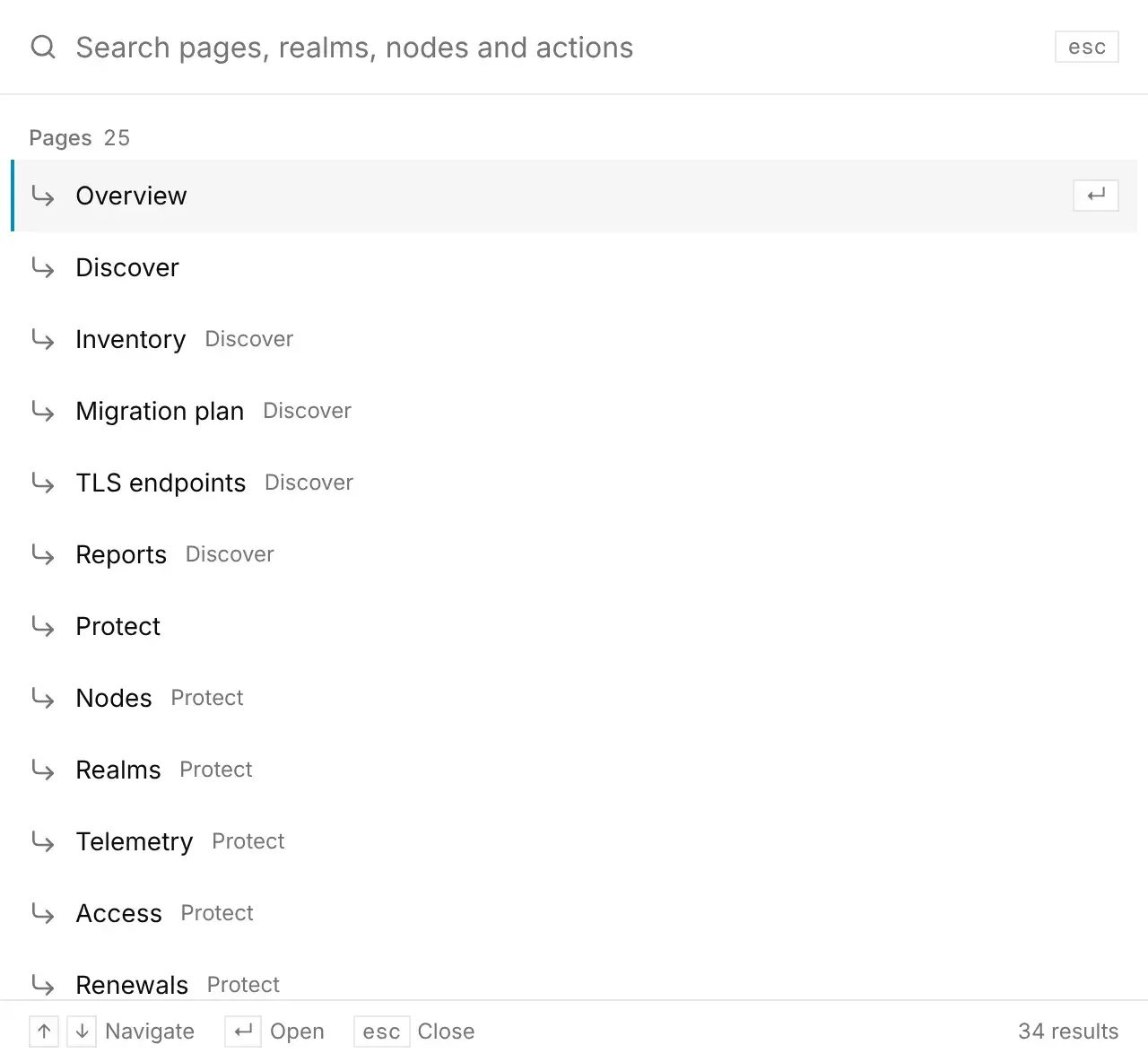
To jump to a page or start an action, press ⌘K on a Mac or Ctrl+K on other systems. You can also select Search or jump to… in the top bar.
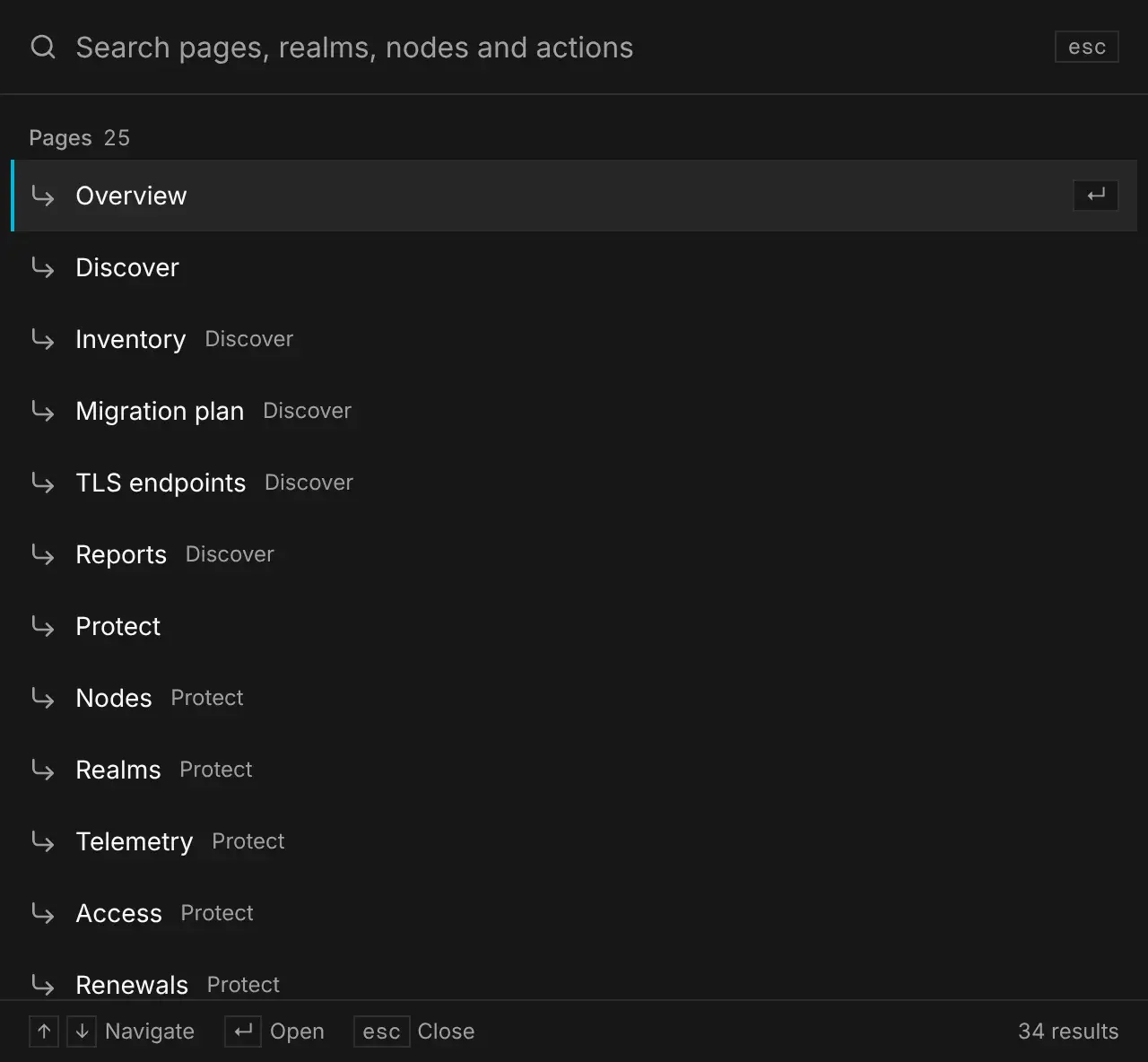
With nothing typed, the palette lists every page and every action your role can take. Type to search by name, address, range or realm. Results are grouped into Pages, Realms, Nodes, People, Audits and Actions. Use the arrow keys to move, Enter to open a result and Esc to close the palette.
| Action | Who sees it |
|---|---|
| Commission node | Managers and admins |
| New sub-realm | Admins, if the realm credential allows sub-realms |
| Issue certificate | Managers and admins |
| New authority | Admins |
| Watch endpoint | Managers and admins |
| Create account | Admins, if the guardian manages its own accounts |
| Build evidence pack | Auditors, managers and admins |
| Start access review | Admins |
| Create audit | Admins |
The Overview
The Overview is the console's home page. It shows your security posture across every realm.
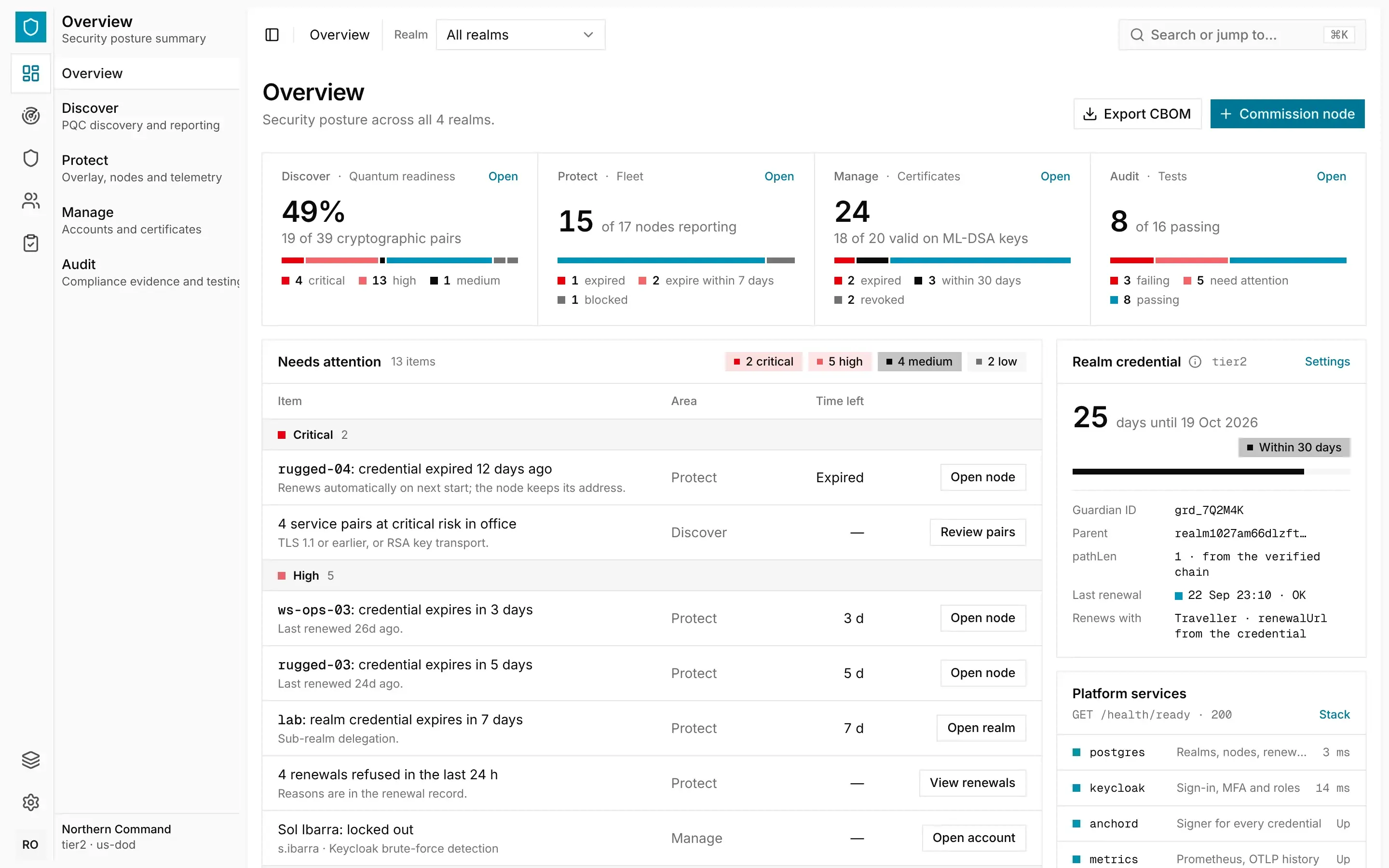
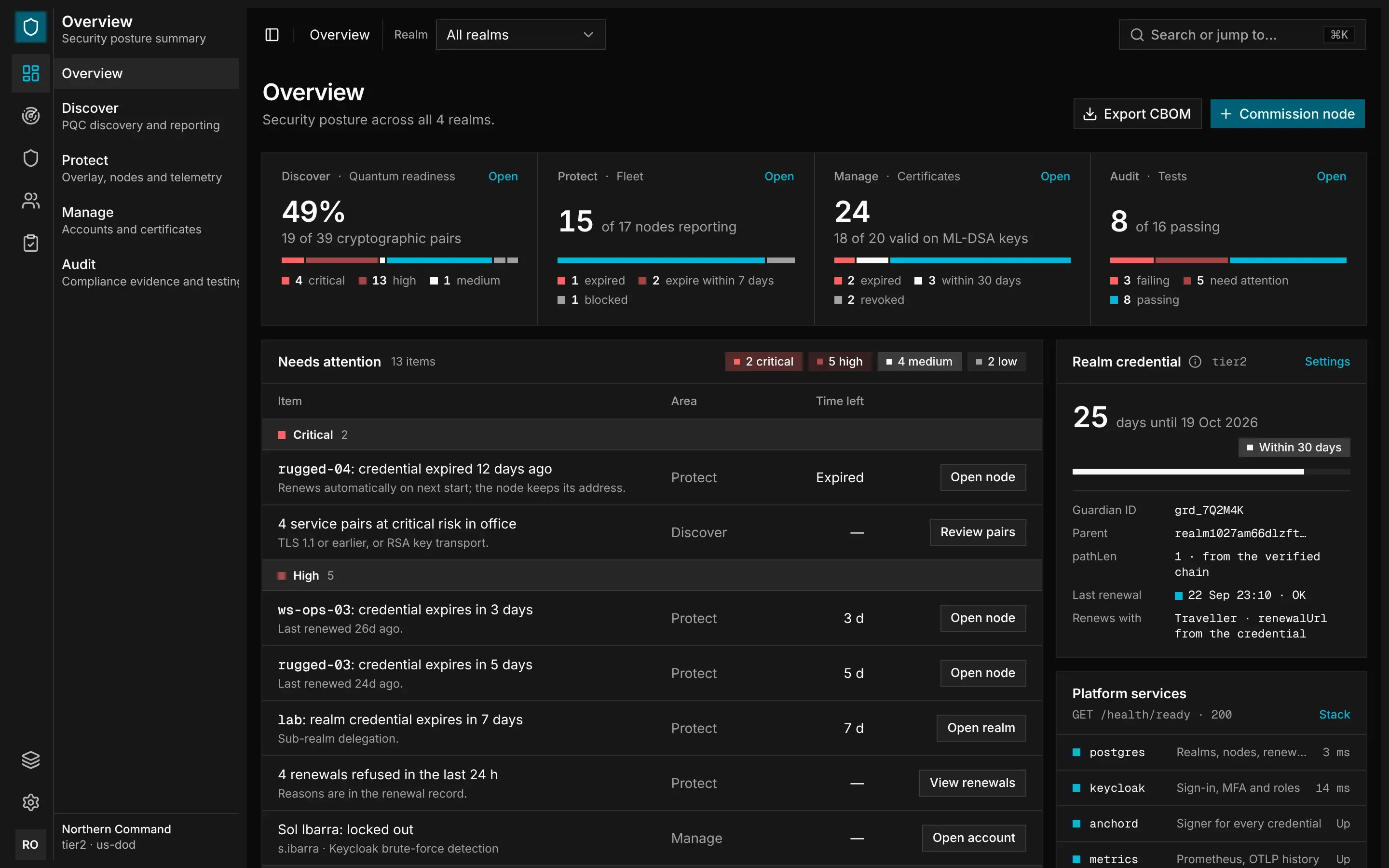
- The posture tiles show one summary for each area your role can use: Quantum readiness for Discover, Fleet for Protect, Certificates for Manage and Tests for Audit.
- Needs attention lists everything that needs action, grouped by severity. Each item shows its area, the time left and a button such as Open node or View pairs.
- Realm credential shows the days left, the guardian ID and the last renewal. See Online, Offline and Expired.
- Platform services shows the health of each service, the conflux release this guardian serves and how many nodes export telemetry.
Auditors and above can select Export CBOM to save the inventory of every realm in one file. Managers and above can select Commission node.
Stack and Settings
Stack & compliance shows how the stack is running: the health of each service, the conflux release it serves, the telemetry pipeline and the network exposure. The Post-install checklist ticks each step the API has verified and lists the steps you need to check yourself. The Compliance panel shows the compliance profile, the idle sign-out time and the Node.js runtime.
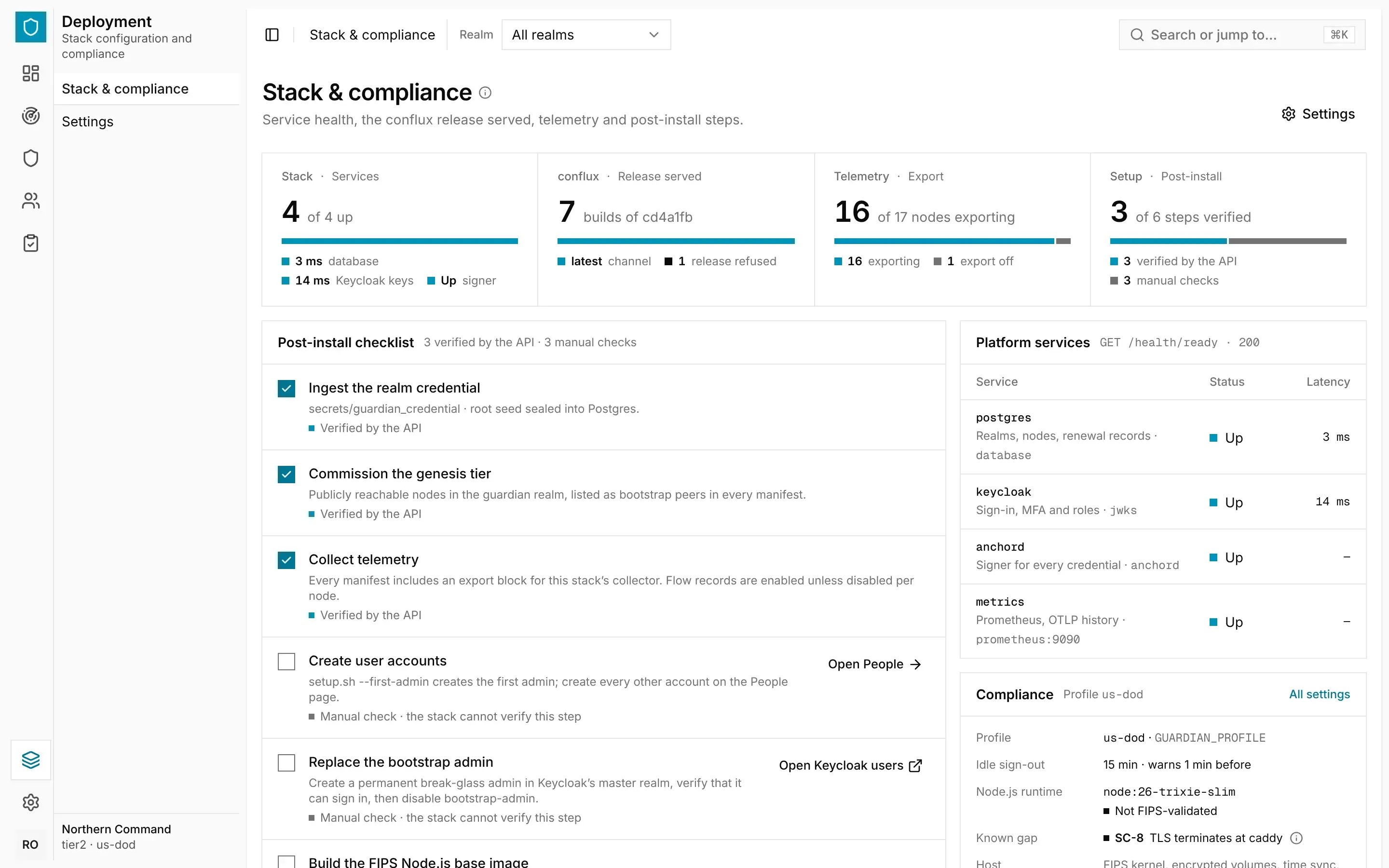
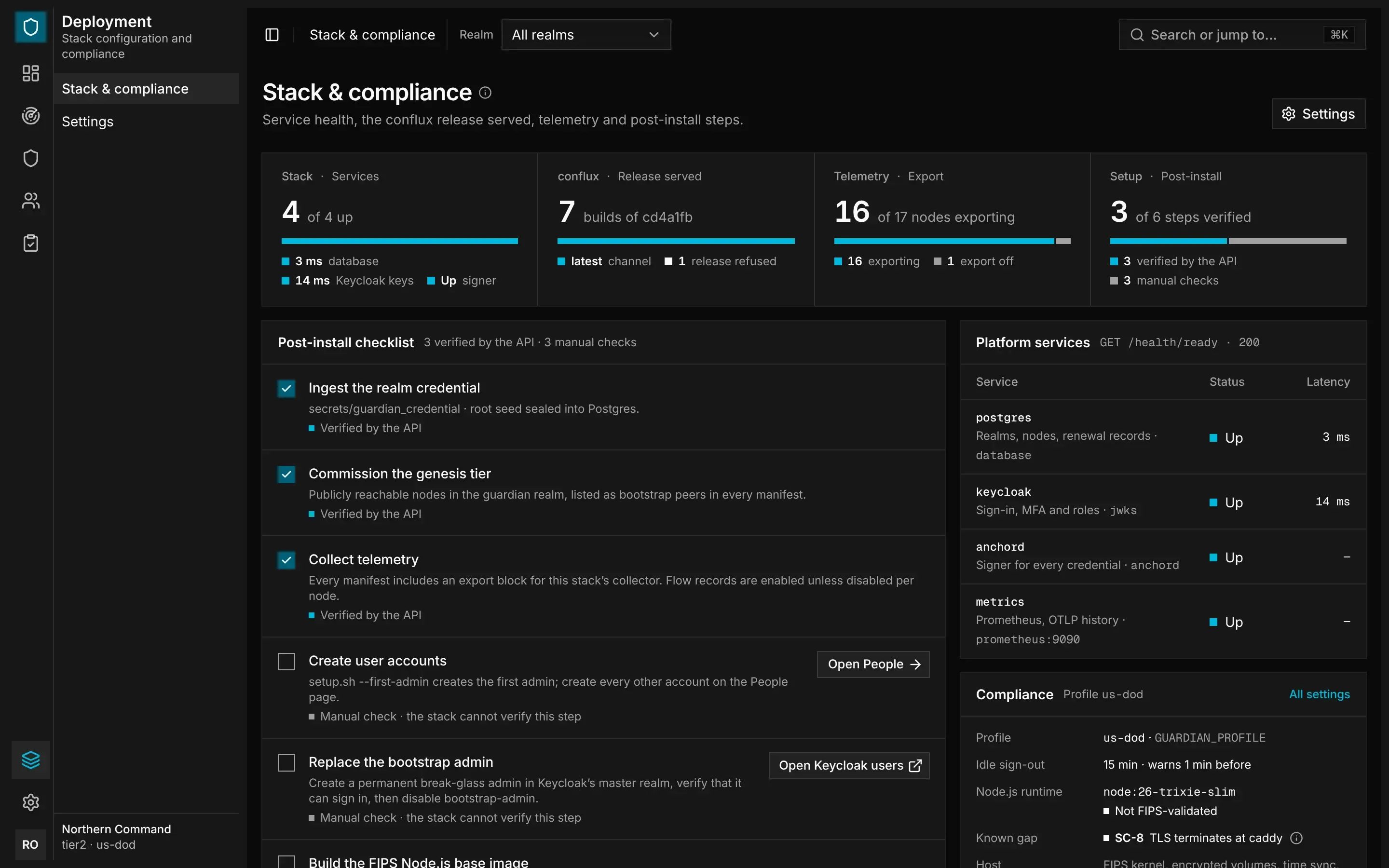
Settings shows how the stack is configured, in six tabs: Realm credential, General, Identity, Node credentials, Realm control and Telemetry. The values are read-only in the console. To change one, edit secrets/.env on the host and run ./setup.sh again.
Staying Signed In
The console signs you out after a period with no key press, click, scroll or touch. Your compliance profile sets this period, and the account menu shows it as the idle timeout. See Compliance Profiles.
One minute before you are signed out, a Session about to expire dialog starts a countdown. To stay, select Stay signed in or press any key. To leave straight away, select Sign out.
All your console tabs share the same timer, so working in one tab keeps the others signed in.
On a Phone
On a phone, a tab bar at the bottom of the screen replaces the rail. It shows the areas your role can use: two for a user, and five for auditors and above. Each tab opens the area's overview page, which links to its other pages.
Your initials in the header open the account menu, which also contains Stack & compliance and Settings. The realm scope is next to the page title and opens a panel. On Discover pages, the same panel also sets the policy and the time window.