Audits and Outside Auditors
Open a workspace for each audit, with its own frameworks and period. Give outside auditors access to it, and answer their requests with evidence from the guardian.
- Where
- Audit › Audits
- Who
- Admins create audits; managers and above answer requests
Before You Begin
| Who | What they can do |
|---|---|
| Admins | Create and close audits, and admit or remove outside auditors |
| Managers and above | Answer requests and comment on them |
| Auditors and above | Read every audit |
| Outside auditors | Work in the audits they are members of |
An outside auditor's account has the outside auditor role, guardian-external-auditor, and no other console role. You grant this role in the identity service, or map it from your identity provider. The console lists these accounts, but it doesn't assign the role. See Sign-In, Roles and Accounts.
Creating an Audit
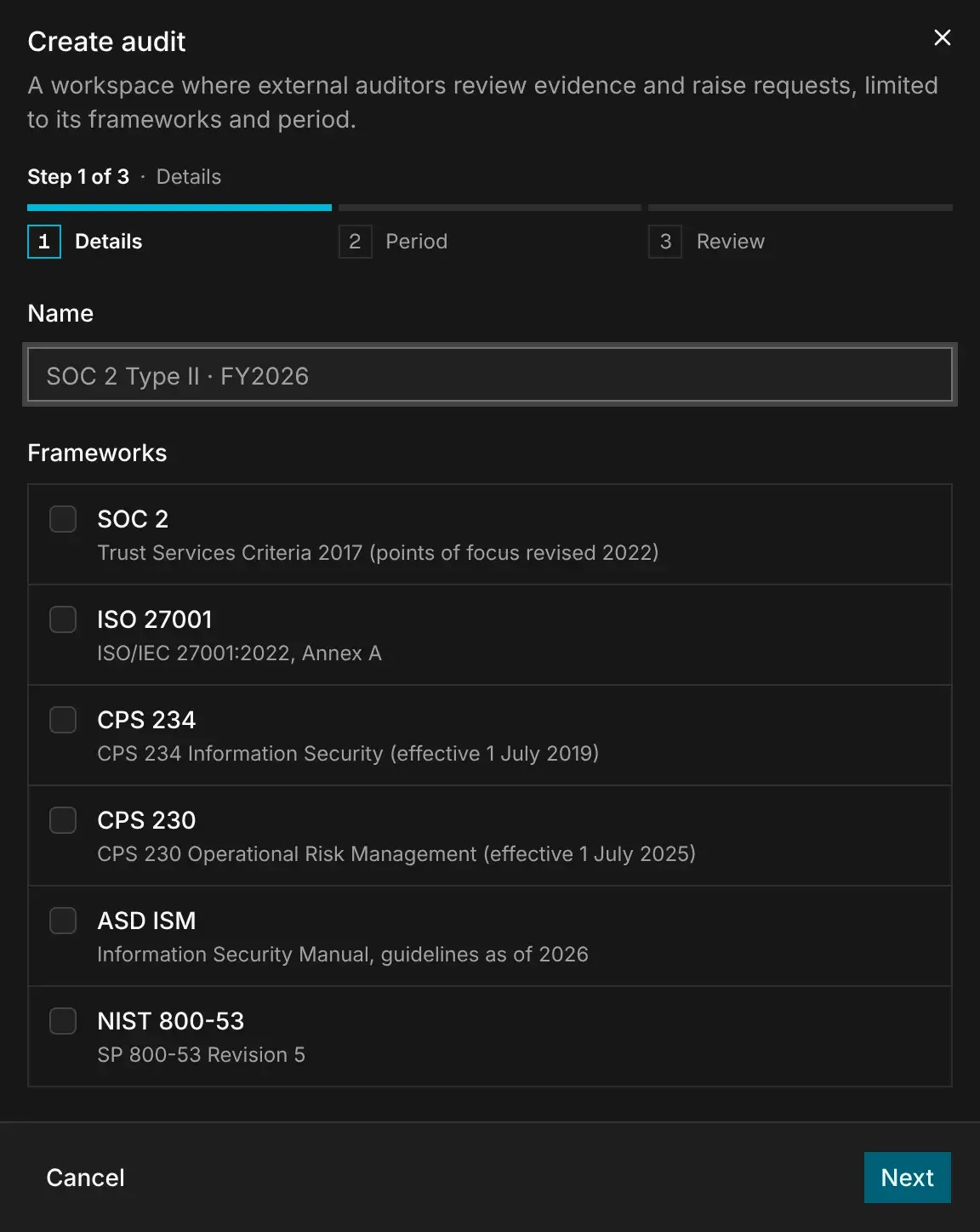
Open Audit › Audits and select Create audit. Enter a Name, such as
SOC 2 Type II · FY2026, and select the Frameworks it covers.Audit › Audits › Create audit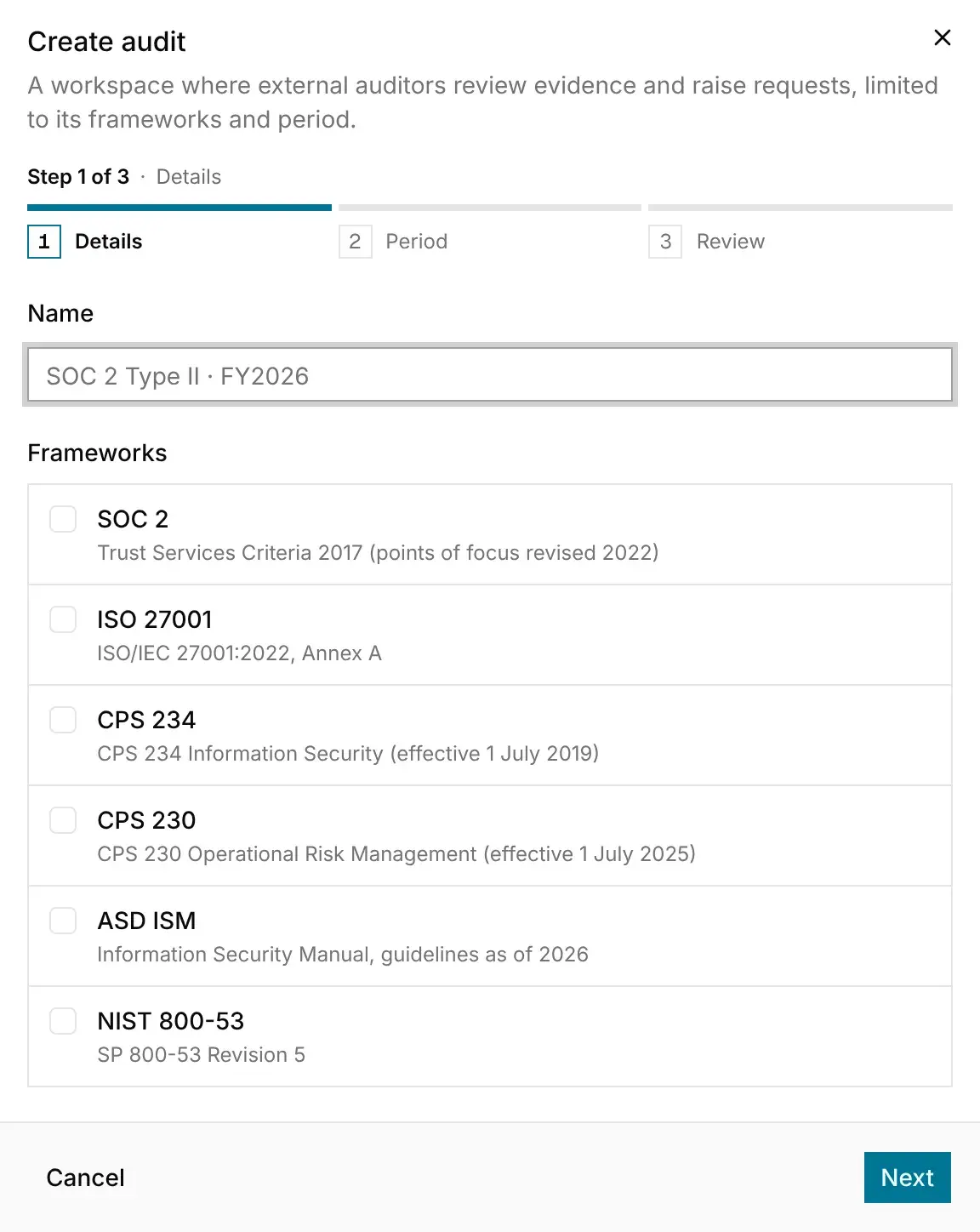
Admitting Outside Auditors
To admit an outside auditor, open the audit. Under Members, choose their account in Admit external auditor and select Admit. The list only includes accounts that have the outside auditor role.
An outside auditor needs both the role and a current membership. To end their access, select Remove next to their name. They immediately lose access to the audit's requests, evidence and pack.
Removing a member doesn't delete them from the record. The audit keeps them in its member list, with who removed them and when. An admin can admit them again later.
What an Outside Auditor Sees
An outside auditor signs in to the same console, but sees only the audits they are a member of. Any other audit appears not to exist, so they can't tell what else the guardian holds.
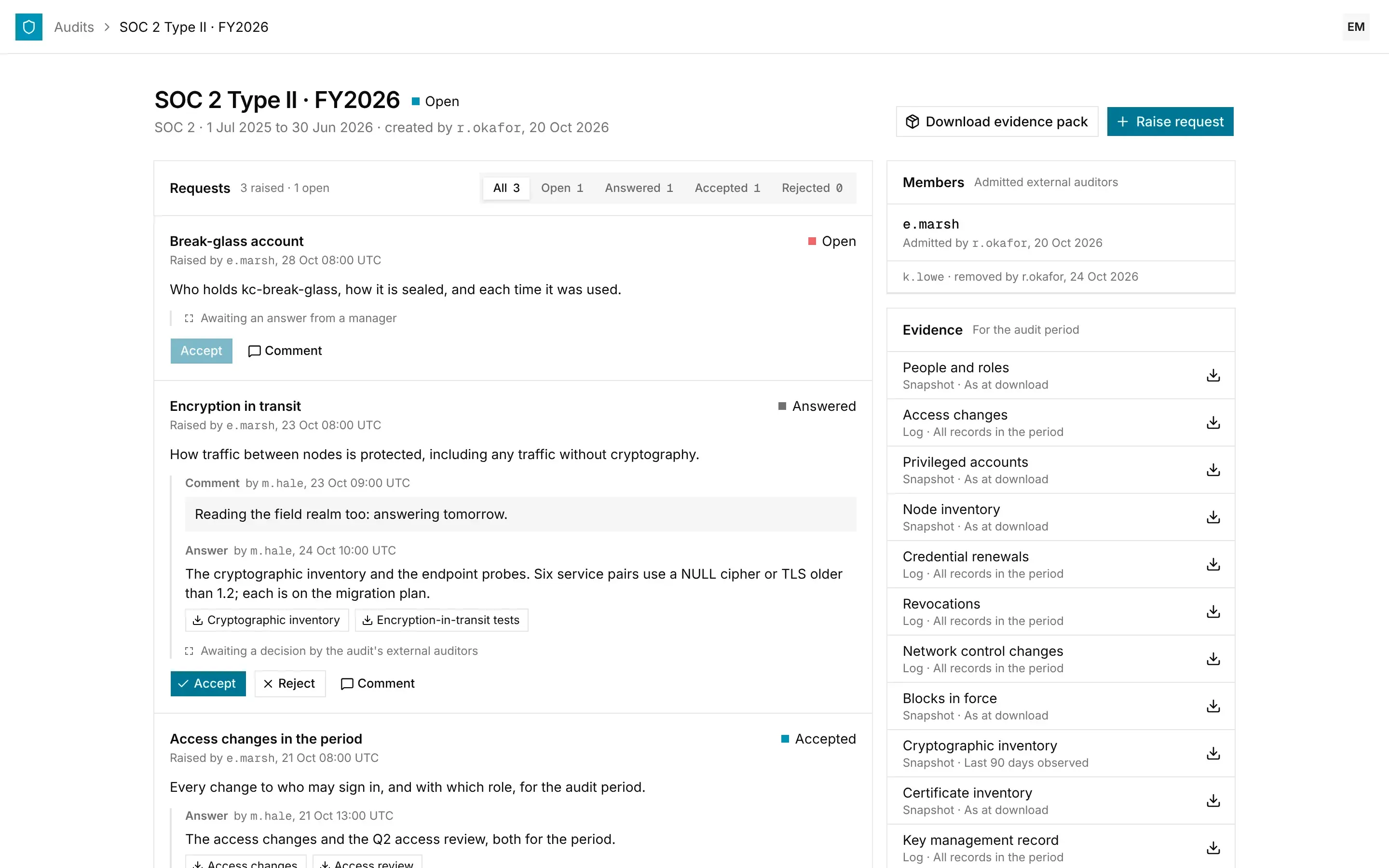
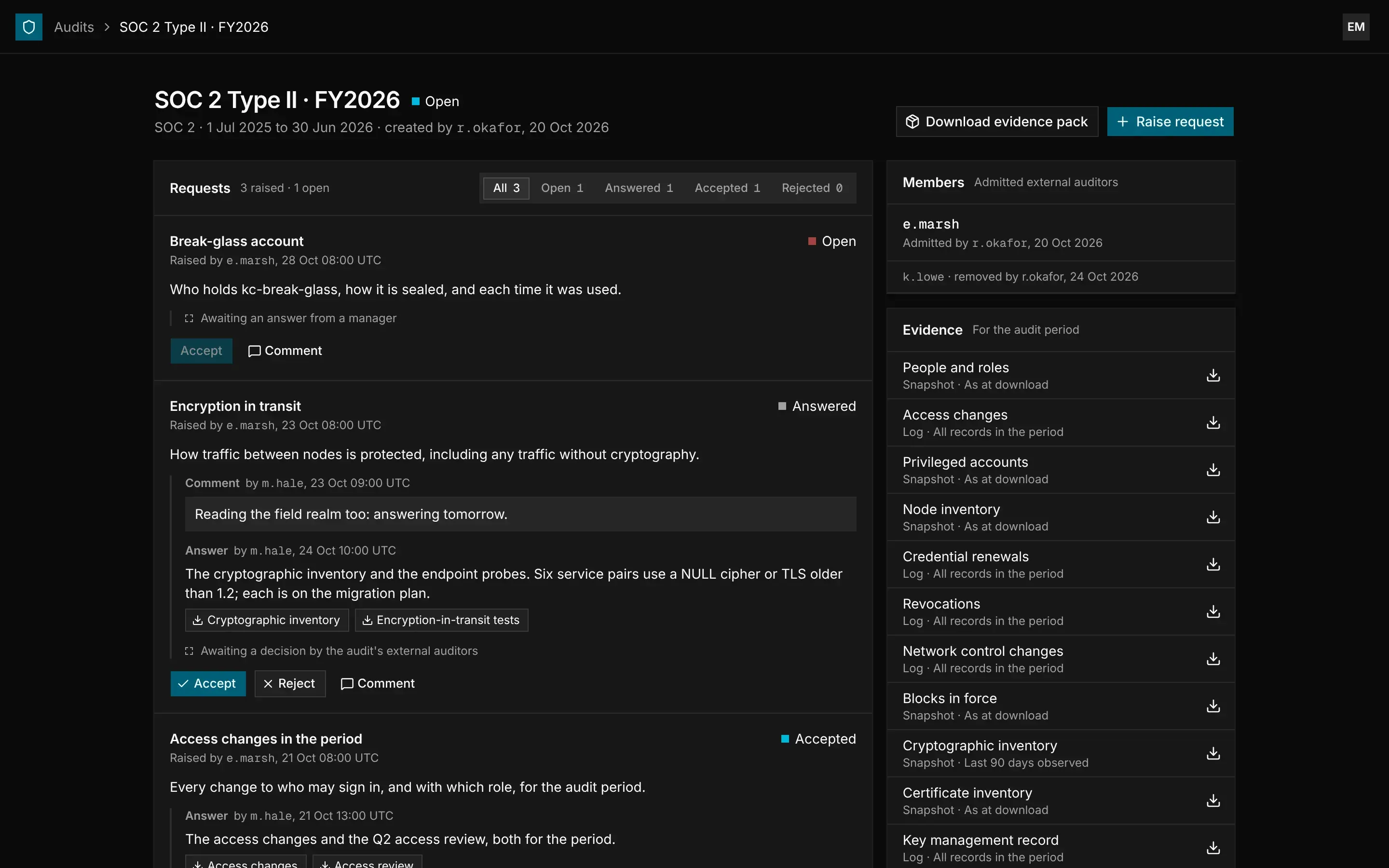
- Requests lists everything raised in the audit, with the answers and comments.
- Evidence lists the items the audit's frameworks need, for the audit's period. Each item can be downloaded on its own.
- Download evidence pack builds a signed pack for the audit's frameworks and period.
To check a pack, the auditor compares its keys with the fingerprints listed under Signing keys in Audit › Evidence, which you can share with them. They then verify the pack as described in Evidence and Signed Packs.
Requests and Answers
A request passes between the auditor and your team:
| Status | What happens | Who acts next |
|---|---|---|
| Open | The auditor selects Raise request and describes the evidence they need. | A manager or admin answers |
| Answered | Your answer points to evidence items from the audit. To answer, select Answer, choose the items, then select Send answer. | The audit's outside auditors accept or reject it |
| Accepted | The request is settled. | Nobody |
| Rejected | The auditor needs a better answer. Select Answer again to reply. | A manager or admin answers |
Both sides can add a Comment at any time. When a new answer replaces an earlier one, the earlier answer and its outcome are kept as a comment. Nobody can accept or reject their own answer.
Closing an Audit
When the audit is finished, an admin selects Close audit at the bottom of its page. After that, nobody can raise, answer, accept, reject or comment on requests, and no auditor can be admitted or removed.
The audit's requests, answers, comments and members stay on record, and its evidence and pack can still be downloaded. A closed audit cannot be opened again.